
Table of Contents
- 1.Step-by-Step Process to Link Credit Card to GPay
- 2.How to Add RuPay Credit Card on Google Pay via UPI
- 3.How to Add Visa or Mastercard on Google Pay
- 4.How to Make GPay Credit Card Payment
- 5.Charges on Google Pay Credit Card Transactions
- 6.Common Errors When Adding Credit Card to Google Pay
- 7.Tips for Safe Credit Card Use on Google Pay
How to Add a Credit Card in Google Pay, Simple Setup Guide
Google Pay is one of India's most widely used digital payment apps, relied on by millions for UPI transfers, QR scan payments, and online checkout. Adding your credit card to Google Pay can make payments faster and, in some cases, let you earn credit card rewards even when you scan a QR code, something that was not possible with traditional credit card swiping at small merchants.
This guide covers exactly how to add your credit card to Google Pay, what types of cards are supported, how to make payments, and what to do if something goes wrong.
Important: In India, UPI payments using credit cards through Google Pay are supported only for RuPay credit cards. Visa and Mastercard credit cards can be added to Google Pay for contactless tap-to-pay or online checkout, but they cannot be used for UPI QR scan payments at merchants. This is a regulatory requirement under RBI guidelines.
Step-by-Step Process to Link Credit Card to GPay
The process differs based on whether you have a RuPay credit card (for UPI payments) or a Visa/Mastercard credit card (for tap-to-pay and online checkout). Here is the general approach to adding any credit card:
- Open the Google Pay app on your Android smartphone.
- Tap your profile picture in the top-right corner of the screen.
- Select Payment methods from the menu.
- Tap Add payment method.
- Choose Add credit or debit card (for Visa/Mastercard) or Add RuPay Credit Card on UPI (for RuPay).
- Enter your card details, 16-digit card number, expiry date, and CVV.
- Verify the card using the OTP sent to your registered mobile number.
- Tap Activate. Your card is now linked to Google Pay.
The process typically takes less than 2 minutes if your mobile number is registered with the bank and OTP delivery is working correctly.
How to Add RuPay Credit Card on Google Pay via UPI
Adding a RuPay credit card to Google Pay for UPI payments involves a few additional steps compared to adding a standard card. This is because a UPI PIN needs to be created or confirmed for the credit card, separate from the card's ATM PIN.
Before you begin, make sure: your RuPay credit card is activated for UPI services (contact your bank to confirm if unsure); the mobile number registered with your bank matches the number on your Google Pay account; and outgoing SMS is enabled on your SIM (Google Pay sends a verification SMS on your behalf during setup).
- Open Google Pay and tap your profile picture.
- Select Payment methods and tap Add RuPay Credit Card on UPI.
- Select your bank from the list of supported banks.
- Enter your RuPay credit card details, card number, expiry date, and CVV.
- Verify the card using the OTP sent to your registered mobile number, or via Aadhaar verification if your Aadhaar is linked to the same mobile number as your RuPay credit card.
- Set or confirm your UPI PIN for the credit card. Note: the UPI PIN for your RuPay credit card is separate from your credit card's ATM or online PIN. If you have an existing UPI PIN for this card, enter it. If not, follow the on-screen steps to create one.
- Once the UPI PIN is set, your RuPay credit card is successfully linked and ready for UPI payments.
Key point: A RuPay credit card linked to Google Pay via UPI can only be used for merchant payments (QR scans, UPI IDs at shops, online checkout). It cannot be used for person-to-person (P2P) money transfers, for example, sending money to a friend's UPI ID. Attempting P2P transfers from a UPI-linked credit card will fail.
You can add up to 3 UPI IDs for the same RuPay credit card. Having multiple UPI IDs improves payment success rates by routing transactions through the best available UPI server.
How to Add Visa or Mastercard on Google Pay
Visa and Mastercard credit cards can be added to Google Pay for use in two scenarios: contactless tap-to-pay at NFC-enabled POS terminals, and online checkout at supported websites and apps. These cards cannot be used for UPI QR code payments at merchants.
- Open Google Pay. Tap your profile picture, then Payment methods.
- Tap Add payment method, then Add credit or debit card.
- Use your camera to scan the card, or enter the details manually, card number, name on card, expiry date, and CVV.
- Enter your billing address if prompted.
- Verify the card using the OTP sent to your bank-registered mobile number.
- Tap Activate. The card is now linked.
For contactless payments at NFC-enabled terminals, hold your NFC-enabled Android phone near the payment terminal and authenticate the transaction using your phone's PIN, fingerprint, or face unlock. For online payments, select Google Pay at checkout and choose your linked Visa or Mastercard credit card.
| Card Network | UPI QR Payments | Tap-to-Pay (NFC) | Online Checkout |
|---|---|---|---|
| RuPay credit card | Yes, with UPI PIN | Yes (if NFC enabled) | Yes |
| Visa credit card | No | Yes (if NFC enabled) | Yes |
| Mastercard credit card | No | Yes (if NFC enabled) | Yes |
*UPI-linked payments from RuPay credit cards are for merchant payments only, not person-to-person transfers. NFC contactless payments require an NFC-enabled Android device.
How to Make GPay Credit Card Payment
How to Pay Using Credit Card on Google Pay
Once your credit card is linked to Google Pay, using it for payments is straightforward. Open Google Pay, initiate a payment (scan QR, enter UPI ID, or tap at NFC terminal), and when prompted to select a payment method, choose your credit card from the list of linked payment methods. Confirm the payment using your UPI PIN (for RuPay on UPI) or your phone's biometric or screen lock (for NFC contactless).
Scan & Pay via Credit Card on GPay
For QR scan payments, this feature is available only for RuPay credit cards linked via UPI. Open Google Pay, tap the camera icon or Scan any QR code, scan the merchant's QR code, enter the payment amount if not pre-filled, select your RuPay credit card as the payment method, and enter your UPI PIN to complete the transaction. The merchant receives the payment instantly, and the amount is charged to your credit card, just like any other credit card transaction.
Some merchants may not accept payments made via RuPay credit cards on UPI. If the merchant's QR code does not accept credit card UPI payments, use your linked bank account (debit) instead.
Online Payments Using Credit Card Linked to GPay
When shopping on apps or websites that support Google Pay as a payment method, select Google Pay at checkout. The app will show your linked payment methods, select your credit card, authenticate with your phone's biometric or screen lock, and the payment goes through. Your card details are never shared with the merchant, Google Pay uses tokenisation, which replaces your card number with a device-specific virtual account number for every transaction.
Charges on Google Pay Credit Card Transactions
Is There Any Fee to Add Credit Card on GPay?
No. Google Pay does not charge any fee to add a credit card to your account. Adding a card, whether RuPay, Visa, or Mastercard, is completely free. There is no activation charge, linking fee, or annual fee imposed by Google Pay for linking a credit card.
MDR Charges on Credit Card UPI Payments
MDR (Merchant Discount Rate) is a fee charged to merchants, not customers, for accepting digital payments. For RuPay credit card UPI transactions, an MDR applies to merchants on transactions above ₹2,000. Transactions up to ₹2,000 attract no MDR for most merchant categories. The MDR is deducted from the merchant's settlement, as a customer, you pay the full transaction amount and are not charged any additional fee by Google Pay for the transaction itself.
For regular UPI payments from bank accounts (debit), no MDR applies, these remain completely free for both customers and merchants as per current Government of India policy. Google Pay has introduced convenience fees on credit card bill payments made through the app, these are separate from transaction MDR and are charged to the customer for the bill payment service specifically.
Key distinction: UPI payments from your bank account = always free. UPI payments using RuPay credit card = free for you as customer, MDR applicable to merchant on transactions above ₹2,000. Credit card bill payments via GPay = may carry a convenience fee (0.5%–1% + GST). Check the Google Pay app for current fee disclosures before paying bills.
Cashback and Rewards on GPay Credit Card Spend
Rewards and cashback on credit card transactions made via Google Pay are governed by your credit card issuer, not by Google Pay itself. If your credit card earns reward points on eligible online purchases, those rewards will typically apply when you use the card at a merchant through Google Pay, subject to the merchant category code (MCC) of the transaction.
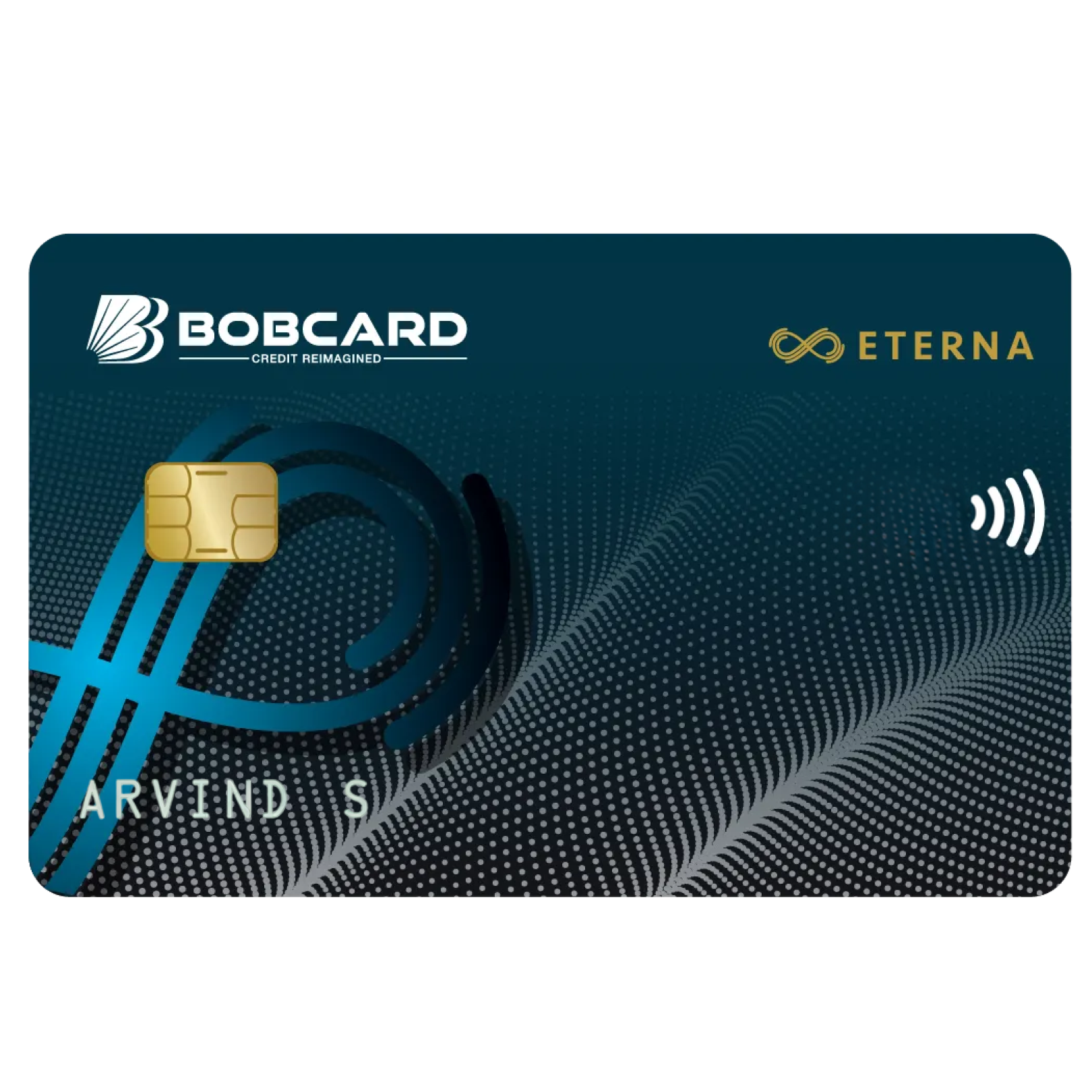
For example, if you hold a BOBCARD ETERNA Credit Card and pay at a restaurant by scanning a QR code using your RuPay ETERNA on Google Pay, you would earn the applicable reward points on that dining transaction, as long as the merchant category qualifies under your card's reward structure. Always check your card's reward programme terms to confirm which transaction categories are eligible.
Common Errors When Adding Credit Card to Google Pay
Card Not Supported or Not Eligible
If Google Pay shows 'card not supported' when you try to add a RuPay credit card for UPI, it typically means one of the following: your bank does not yet support RuPay credit cards on UPI, your card variant is not eligible (only Platinum, Select and higher RuPay credit card variants typically support UPI), or your card has not been activated for UPI services. Contact your bank to confirm UPI eligibility before attempting to add the card again.
For Visa and Mastercard credit cards, the 'not supported' error is usually resolved by checking that your card is active, that international or online transactions are enabled, and that you are entering the correct card details including the billing address.
OTP Verification Failure
OTP failures during credit card linking are usually caused by one of three things: the mobile number registered with your bank is different from the one on your Google Pay account; outgoing SMS is disabled on your SIM (Google Pay sends a verification SMS on your behalf); or on dual-SIM devices, the wrong SIM is set as the default for outgoing SMS.
To fix: confirm your bank-registered mobile number matches your Google Pay number, enable outgoing SMS, and on dual-SIM phones, go to Settings > SIM cards > Dual SIM settings and set the correct SIM as default for SMS.
Credit Card Added But Payment Not Going Through
If the card shows as linked but transactions fail, the most common causes are: the UPI PIN has not been set up (for RuPay credit cards on UPI), the credit card has reached its credit limit, the merchant does not accept credit card UPI payments, or the card issuer's server is temporarily unavailable.
Check your credit limit in your bank's app, verify the UPI PIN is set correctly, and try a different payment method if the merchant's QR does not accept credit card UPI payments. Multiple UPI IDs on the same RuPay card can improve success rates, you can add up to 3 UPI IDs in Google Pay's Payment methods settings.
How to Remove and Re-Add Credit Card on GPay
To remove a credit card: open Google Pay, tap your profile picture, select Payment methods, tap the card you want to remove, and select Remove card. To re-add it, follow the standard card-adding process. Re-adding the card is sometimes the quickest fix for persistent payment failures after verifying that the card is active and the credit limit is not exhausted.
Tips for Safe Credit Card Use on Google Pay
Enable Transaction Alerts for Every GPay Payment
Set up SMS and email alerts for every credit card transaction through your bank's mobile app or net banking. These alerts arrive within seconds of a transaction and allow you to catch any unauthorised use immediately. Most banks allow you to configure transaction alert thresholds, setting the minimum alert amount to ₹1 ensures you are notified for every transaction regardless of size.
Set Spending Limits to Avoid Overspending
Many banks allow you to set a daily or monthly transaction limit on your credit card through the mobile app. This is particularly useful when you have linked your credit card to Google Pay for convenient payments, easy access can lead to unplanned spending. Setting a self-imposed limit on the card reduces the risk of overspending while still enjoying the convenience of GPay credit card payments.
What to Do If Unauthorized Transaction Occurs
If you notice an unauthorised transaction on your credit card linked to Google Pay, take these steps immediately: call your bank's 24-hour credit card helpline to block the card; report the unauthorised transaction to the bank, most banks offer zero liability on fraudulent transactions reported promptly; file a complaint through your bank's app or net banking; and report the incident to the National Cyber Crime portal at cybercrime.gov.in if you suspect fraud.
Google Pay transactions are secured through tokenisation, your actual card number is never stored on your phone or shared with merchants. However, if your phone is lost or stolen, lock your Google Pay account remotely through the Google account settings to prevent misuse.
Bank of Baroda's credit cards are issued through BOBCARD, a 100% subsidiary of Bank of Baroda. Apply online in 3 steps: fill the form, Aadhaar eSign, Video KYC. No branch visit required.
Whether you are looking for your first credit card, a cashback card for everyday savings, or a premium travel card with unlimited lounge access, BOBCARD has a card for every income level and spending style.
Frequently Asked Questions
Disclaimer:
This article is for general informational and educational purposes only. Google Pay features, MDR applicability, and RBI/NPCI guidelines are subject to change. Always refer to official Google Pay Help, your bank, and NPCI for the most current information. Eligibility, fees and card features are subject to the terms and conditions published on the official BOBCARD website. Verify current details before applying.